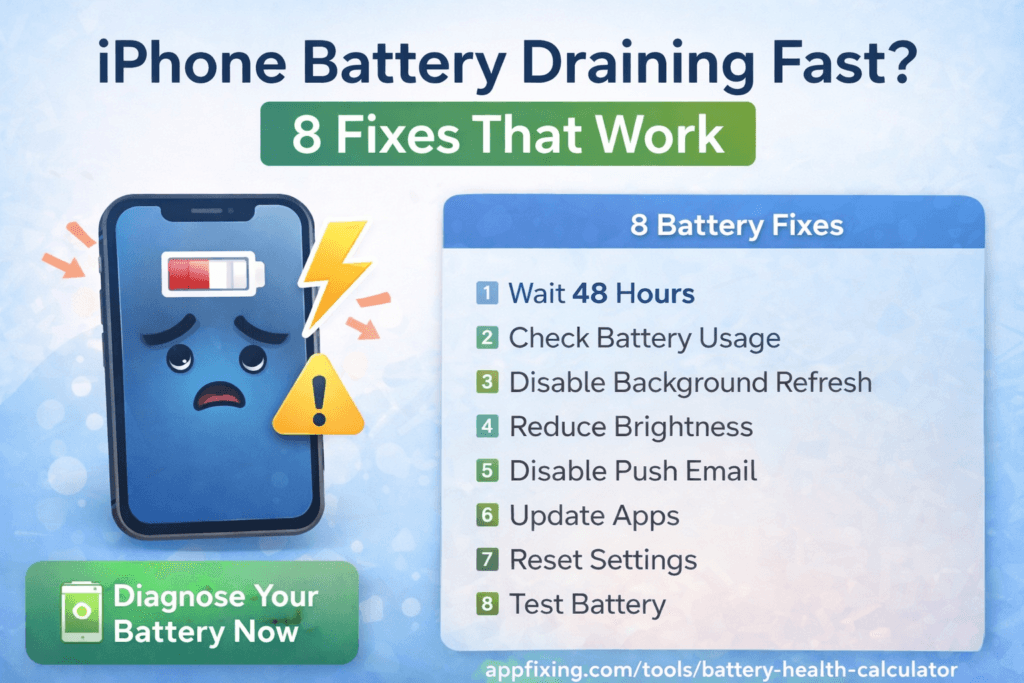
iPhone Battery Draining Fast After Update? 8 Fixes That Work
Updated your iPhone and now the battery drains dramatically faster? You’re not alone. After every major iOS update, thousands of users report the same issue. The good news: it’s almost always fixable — and most of the time you don’t need to visit an Apple Store.
Why Does iOS Updates Drain Battery Faster?
After an iOS update, several background processes kick in automatically:
- Spotlight re-indexing — iOS rebuilds its search index for all your apps and files
- iCloud syncing — Photos, contacts, and settings sync to the cloud
- App re-compilation — Apps are re-optimized for the new iOS version
- Background app refresh — Apps update their content in the background
These processes typically settle within 24–48 hours. But if your battery is still draining fast after 2 days, you need to take action.
Fix 1: Wait 24–48 Hours First
This sounds too simple, but it works for most people. iOS needs time to complete background tasks after a major update. Charge your iPhone overnight and let it run normally for two full days. Many users find the battery life returns to normal on its own.
Fix 2: Check Which App Is Draining Battery
Go to Settings → Battery and scroll down to see battery usage by app over the last 24 hours and 10 days. Look for any app using an unusually high percentage. Common culprits after updates include Facebook, Instagram, Gmail, and location-based apps.
If you find a rogue app, delete and reinstall it or simply delete it if you don’t need it.
Fix 3: Turn Off Background App Refresh
Go to Settings → General → Background App Refresh and turn it off completely, or disable it for specific apps that don’t need real-time updates. This can dramatically extend battery life, especially after updates when apps are especially active in the background.
Fix 4: Reset All Settings
Sometimes a fresh update changes settings in ways that drain battery. Go to Settings → General → Transfer or Reset iPhone → Reset → Reset All Settings. This won’t delete your data, but it will reset network settings, display settings, and privacy settings to default. Reconnect to Wi-Fi after the reset.
Fix 5: Disable Location Services for Non-Essential Apps
Go to Settings → Privacy & Security → Location Services. Set most apps to “While Using” or “Never.” Only apps like Maps, Uber, or Waze truly need “Always On.” Every app running location in the background drains your battery silently.
Fix 6: Reduce Screen Brightness and Enable Auto-Brightness
The display is the biggest battery drain on any iPhone. Go to Settings → Accessibility → Display & Text Size and make sure Auto-Brightness is on. Then swipe down Control Center and lower your brightness manually. On OLED iPhones (iPhone X and later), using Dark Mode also saves significant battery.
Fix 7: Enable Low Power Mode
Go to Settings → Battery → Low Power Mode and turn it on. This reduces background activity, automatic downloads, and visual effects. It’s a quick win that extends battery life by 1–3 hours. You can also add it to Control Center for fast access.
Fix 8: Restore iPhone as New (Last Resort)
If nothing works, a clean restore can fix deep software issues introduced by the update. Back up your iPhone via iCloud or Finder/iTunes first. Then go to Settings → General → Transfer or Reset iPhone → Erase All Content and Settings. Set up as a new iPhone (don’t restore from backup immediately) and test the battery for a day. If it’s fine, restore your backup.
When to Worry About Your Battery Health
Check Settings → Battery → Battery Health & Charging. If your battery health is below 80%, Apple considers it worn out and eligible for replacement. If it’s above 80% and still draining fast after an update, the issue is software, not hardware — and the fixes above should solve it.
If your battery health is dropping quickly over time, see our guide: iPhone Battery Health Dropping Quickly? Causes + Fix.
Quick Summary
| Fix | Best For |
|---|---|
| Wait 48 hours | Just updated (most common fix) |
| Check battery usage by app | One specific app draining battery |
| Disable Background App Refresh | General background drain |
| Reset All Settings | Software bug after update |
| Disable Location Services | Location apps draining battery |
| Lower brightness / Dark Mode | Screen draining battery |
| Low Power Mode | Need to get through the day |
| Restore as new | Everything else failed |
Still having problems? Check out our full guide on iPhone running slow — many of the same fixes apply to both battery drain and performance issues.