
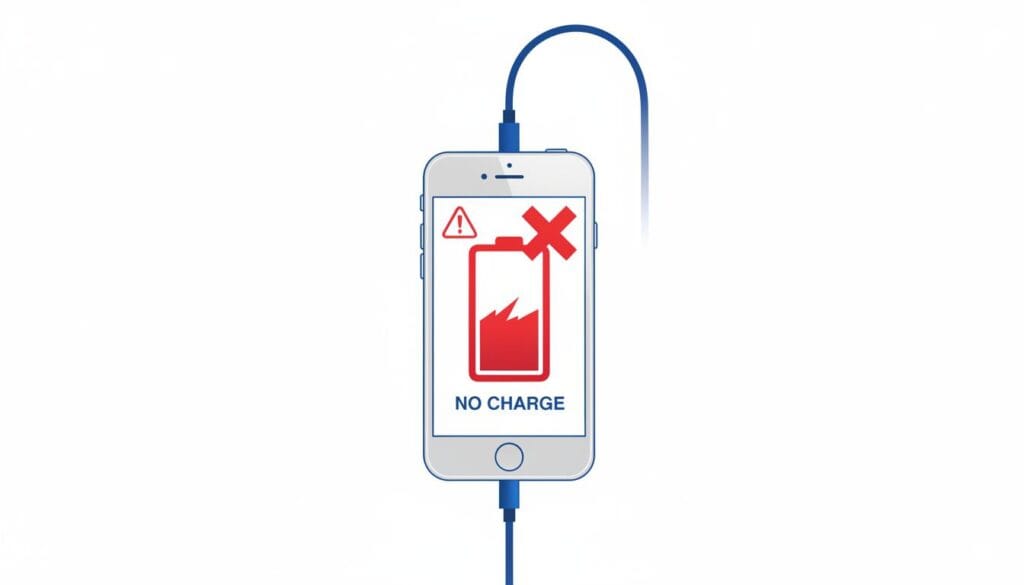
iPhone Not Charging But Connected? 7 Quick Fixes
Last Updated: January 2025 | Reading Time: 5 minutes | Category: iPhone Battery
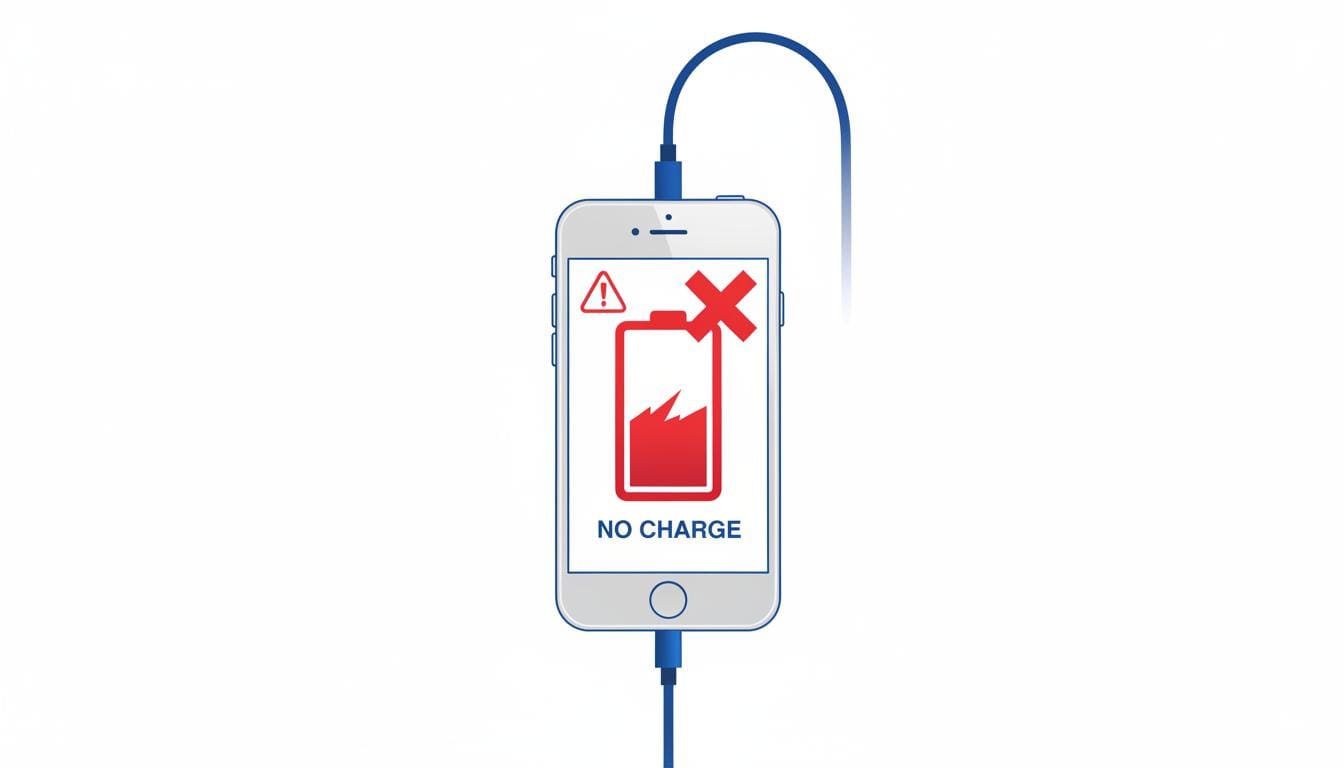
The Problem
You plug in your iPhone, hear the charging sound (or see the lightning bolt), but the battery percentage stays the same—or even drops.
Don’t panic! Most charging issues are easy fixes. Try these solutions in order.
Quick Diagnosis: What’s Causing It?
| Symptom | Likely Cause | Try Fix # |
|---|---|---|
| Charging symbol appears but % doesn’t increase | Software glitch | Fix 1 |
| Intermittent charging (starts/stops) | Dirty port or bad cable | Fix 2 or 3 |
| “This accessory may not be supported” | Non-certified cable | Fix 3 |
| Only charges when off | Software issue | Fix 1 |
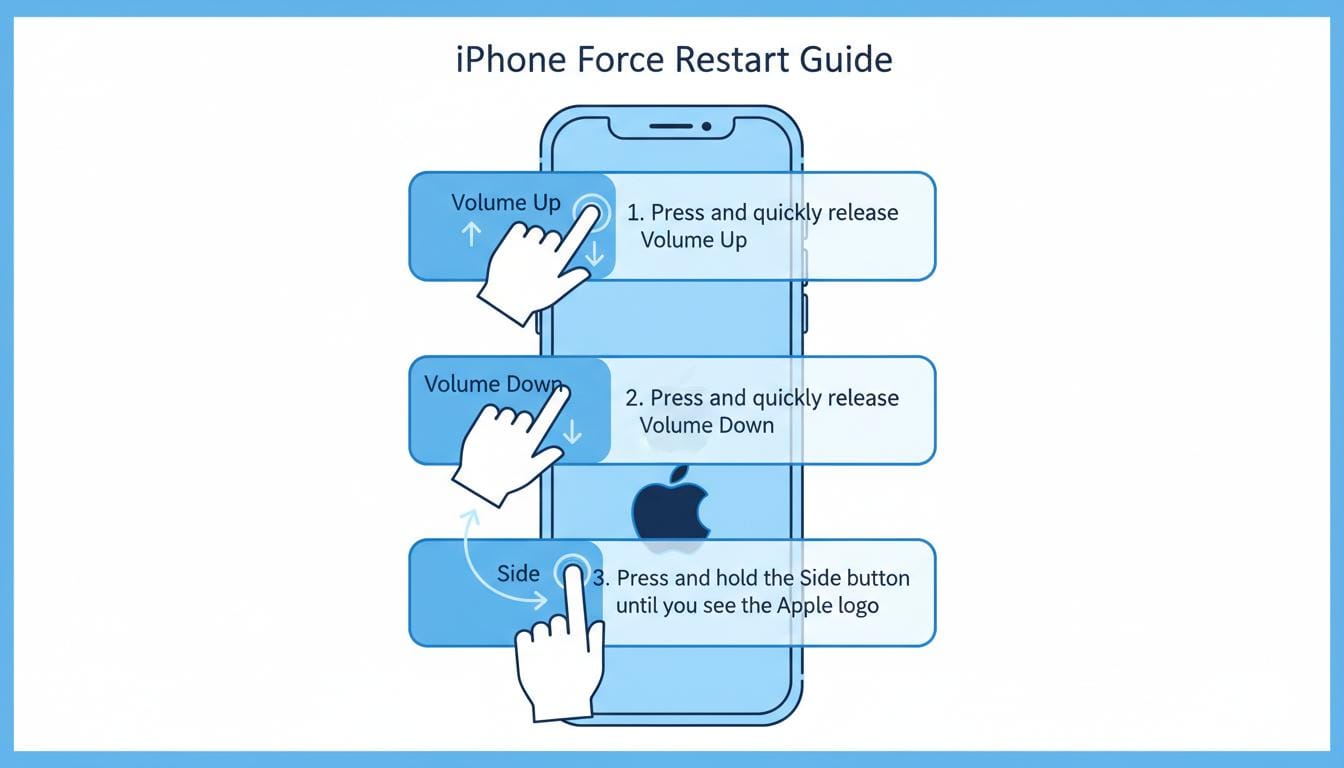
Fix 1: Hard Reset (Force Restart) – Try This First!
Time needed: 1 minute | Success rate: 35%
A simple software glitch often prevents proper charging recognition.
For iPhone 8 and newer:
- Press and quickly release Volume Up
- Press and quickly release Volume Down
- Press and hold the Side button until you see the Apple logo
- Release and wait for restart
For iPhone 7/7 Plus:
- Press and hold Volume Down + Side button
- Keep holding until Apple logo appears
For iPhone 6s and older:
- Press and hold Home + Top/Side button
- Keep holding until Apple logo appears
After restart: Plug in and check if charging resumes normally.
Fix 2: Clean Your Charging Port
Time needed: 5 minutes | Success rate: 40%
Lint and debris are the #1 physical cause of charging issues.
What You’ll Need:
- Wooden toothpick (never metal!)
- Flashlight
How to Clean Safely:
- Power off your iPhone completely
- Shine flashlight into charging port
- Gently remove visible lint with wooden toothpick
- Blow compressed air in short bursts
- Look for any remaining debris
- Power on and test charging
⚠️ Warning: Never use metal objects or liquids!
🔗 Check your battery health with our Battery Health Calculator
Fix 3: Try a Different Cable and Adapter
Time needed: 2 minutes | Success rate: 50%
Cables fail more often than iPhones.
Test These:
- Try a different Lightning cable (borrow if needed)
- Try a different power adapter (iPad adapters work great)
- Try a different power outlet
- Try charging from computer USB port
Results:
| Result | What It Means | Solution |
|---|---|---|
| Charges with different cable | Your cable is bad | Replace with MFi-certified cable |
| Still not charging | Continue to next fixes | Try Fix 4 |
Recommended: Apple MFi-certified cables only
Fix 4: Check Battery Health
Time needed: 2 minutes
An aging battery may not charge properly.
How to Check:
- Open Settings
- Tap Battery
- Tap Battery Health & Charging
- Look at Maximum Capacity
What the Numbers Mean:
| Capacity | Status | Action |
|---|---|---|
| 100-90% | Excellent | No action needed |
| 89-80% | Good | Monitor regularly |
| Below 80% | Needs replacement | Consider battery replacement |
🔗 Use our Battery Health Calculator to see if you need a new battery
Fix 5: Cool Down Your iPhone
If your iPhone feels hot, it won’t charge to protect the battery.
Signs of Overheating:
- Phone feels warm to touch
- Charging stopped working
- Using phone while charging
Quick Fix:
- Remove the case
- Move to cooler room
- Close all apps
- Wait 15-20 minutes
- Try charging again
Fix 6: Check for iOS Updates
Time needed: 10-15 minutes | Success rate: 20%
Apple releases updates that fix charging bugs.
How to Update:
- Go to Settings → General → Software Update
- If an update is available, tap Download and Install
- Keep iPhone plugged in during update
- Test charging after restart
Fix 7: Reset All Settings
Time needed: 5 minutes | Success rate: 25%
This fixes software conflicts without deleting your data.
How to Reset:
- Settings → General → Transfer or Reset iPhone
- Tap Reset → Reset All Settings
- Enter passcode and confirm
- iPhone will restart
What gets reset: Wi-Fi passwords, wallpaper, brightness, notifications
What stays: Photos, apps, messages, data
When It’s Definitely Hardware
Contact Apple Support if:
- iPhone shows charging symbol but never increases (after trying all fixes)
- Charging port looks damaged or corroded
- iPhone was dropped in water recently
- Battery is swollen (screen lifting)
- iPhone won’t turn on at all
Apple Support: support.apple.com/iphone
Prevention Tips
- ✅ Use certified cables only – Look for “Made for iPhone” label
- ✅ Clean port monthly – Quick lint removal prevents buildup
- ✅ Don’t charge in extreme temperatures – Avoid direct sunlight, hot cars
- ✅ Update iOS regularly – Bug fixes prevent charging issues
- ✅ Check battery health – Replace when below 80%
Quick Troubleshooting Checklist
- Force restart iPhone
- Clean charging port
- Try different cable and adapter
- Check battery health
- Cool down iPhone
- Update iOS
- Reset all settings
FAQ
Q: Why does my iPhone say charging but battery goes down?
A: Usually background apps use more power than charger provides. Close apps or use higher-wattage adapter.
Q: Can I use iPad charger for iPhone?
A: Yes! iPad chargers (12W or 20W) charge iPhones faster safely.
Q: How do I know if my charging port is damaged?
A: Cable feels loose, wobbles, or only charges at certain angles.
Q: Why is my iPhone charging slowly?
A: See our guide on iPhone charging slowly fixes
Related Articles
- iPhone Battery Draining Fast After Update (Fix Guide)
- iPhone Charging Slowly – Causes & Solutions
- iPhone Stops Charging at 80% (Explained + Fix)
- iPhone Hot While Charging – Causes & Fix
- Battery Health Calculator
Which fix worked for you? Share in comments to help others!