
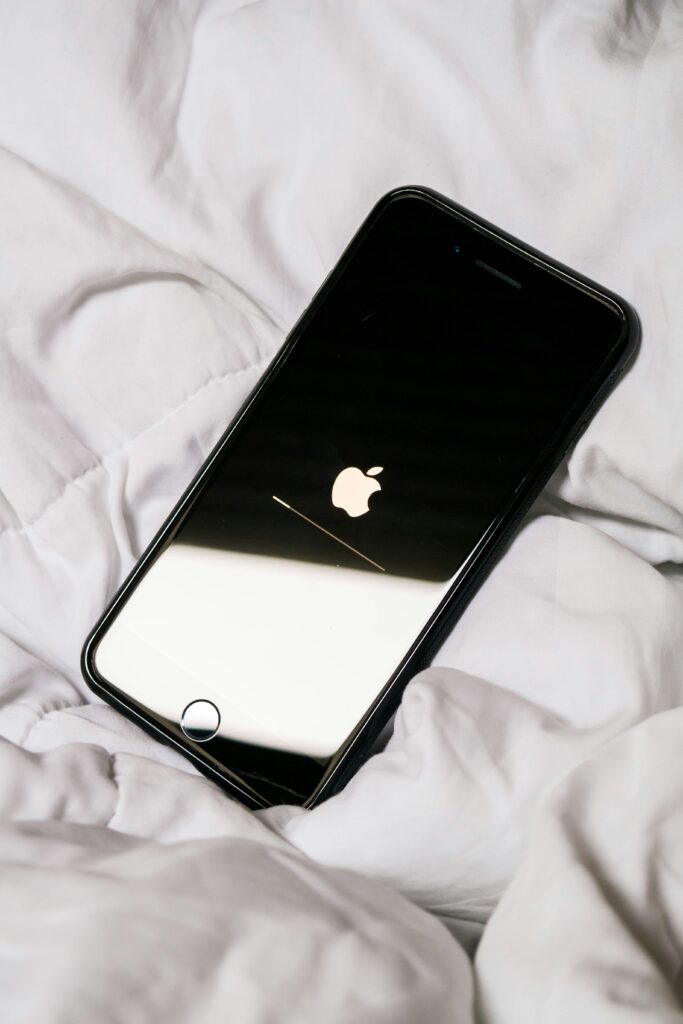
Is your iPhone screen completely black but the phone is still on? You’re not alone. The iPhone Black Screen of Death is one of the most common issues iPhone users face. The good news is that in most cases, you can fix it yourself in minutes — no Apple Store visit needed. In this guide, we’ll walk you through every possible fix, from the simplest to the most advanced.
Why Does the iPhone Black Screen of Death Happen?
Several reasons can cause your iPhone screen to go black:
- A minor software glitch or crash
- A failed iOS update
- Low battery or charging issues
- Physical damage to the screen
- A hardware problem with the display connector
How to Fix iPhone Black Screen of Death
Fix 1: Force Restart Your iPhone
This is the first and most effective fix. A force restart clears temporary software glitches without deleting your data.
For iPhone 8 and later:
- Quickly press and release the Volume Up button
- Quickly press and release the Volume Down button
- Press and hold the Side button until the Apple logo appears
For iPhone 7:
- Press and hold both Volume Down and Sleep/Wake buttons simultaneously
- Hold until the Apple logo appears
For iPhone 6s and earlier:
- Press and hold both Home and Sleep/Wake buttons
- Hold until the Apple logo appears
Fix 2: Charge Your iPhone
Sometimes the black screen simply means your battery is completely dead.
- Connect your iPhone to its original charger
- Wait at least 15-30 minutes
- Look for the charging indicator on screen
- If nothing appears, try a different cable or charger
Fix 3: Check Your Brightness Settings
Your screen might be on but brightness is turned all the way down.
- Ask Siri: “Turn up my brightness”
- Or try pressing the volume buttons — if you hear sounds, the phone is on
- Connect to iTunes and adjust settings from there
Fix 4: Update or Restore via iTunes/Finder
If the force restart didn’t work, try restoring through your computer.
- Connect your iPhone to a computer
- Open iTunes (Windows) or Finder (Mac)
- Put your iPhone in Recovery Mode
- Choose Update first — this keeps your data
- If Update doesn’t work, choose Restore
⚠️ Warning: Restore will erase all data. Make sure you have a backup.
Fix 5: Check for Physical Damage
If your iPhone was recently dropped or exposed to water:
- Inspect the screen for cracks
- Check the charging port for water damage
- Look for any visible damage around the screen edges
If you find physical damage, a professional repair may be needed.
Fix 6: Contact Apple Support
If none of the above fixes worked, the issue might be hardware-related.
- Visit Apple Support
- Book a Genius Bar appointment
- Check if your device is still under warranty
Conclusion
The iPhone Black Screen of Death sounds scary, but it’s usually fixable at home. Start with a force restart, then try charging your phone, and work your way through the fixes above. In most cases, one of these solutions will get your iPhone back to normal.
Did this guide help you? Leave a comment below and tell us which fix worked for you!