
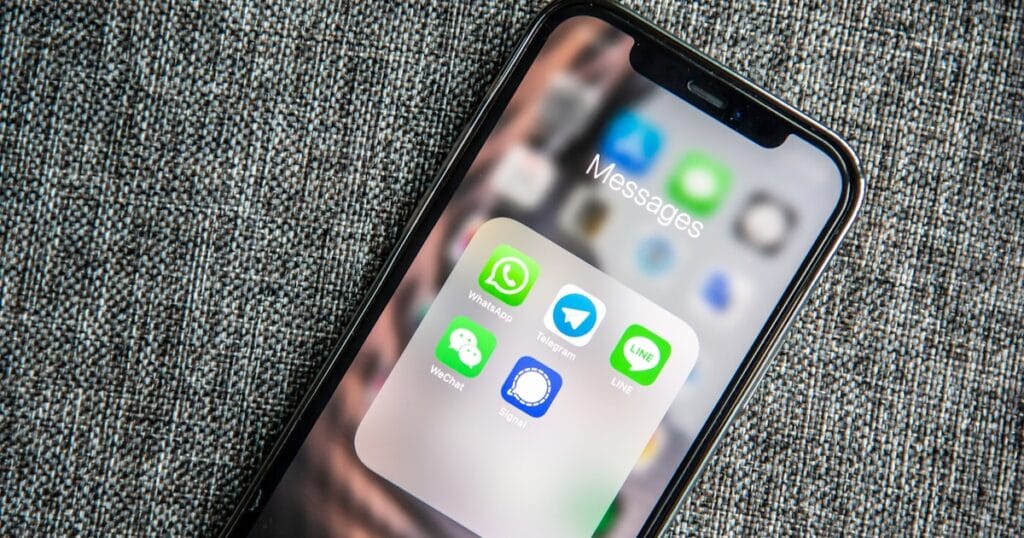
The Problem
WhatsApp is suddenly not working â messages are stuck on one tick, calls are dropping, the app crashes on launch, or notifications simply stopped arriving. With over 2 billion users worldwide, WhatsApp issues affect millions of people every day.
This guide covers every common WhatsApp problem on both iPhone and Android with step-by-step fixes that actually work.
Common WhatsApp Issues Covered in This Guide
- WhatsApp crashes or freezes when opening
- Messages stuck on one grey tick (not delivered)
- WhatsApp calls not connecting or dropping
- Notifications not appearing
- WhatsApp not loading media (images, videos)
- WhatsApp says Connecting and never connects
Step 1: Check WhatsApp Server Status
Before doing anything on your phone, verify that WhatsApp itself is not down.
- Visit downdetector.com/status/whatsapp from any browser
- Check if there are widespread outage reports
- If WhatsApp servers are down, wait 15-30 minutes and try again
Step 2: Check Your Internet Connection
WhatsApp requires a stable internet connection. A weak Wi-Fi or mobile data signal causes most message delivery failures.
- Open your browser and try loading a webpage
- If the browser does not load, your internet connection is the problem not WhatsApp
- Try switching between Wi-Fi and mobile data
- If on Wi-Fi, move closer to the router or restart it
- Enable Airplane Mode for 10 seconds, then disable it to force a network refresh
Step 3: Force Close and Reopen WhatsApp
On iPhone: Swipe up from the bottom to open the app switcher. Find WhatsApp and swipe it upward to close it. Wait 5 seconds, then reopen.
On Android: Tap the Recent Apps button. Find WhatsApp and swipe it away to close. Or go to Settings – Apps – WhatsApp – Force Stop.
Step 4: Update WhatsApp
An outdated version of WhatsApp often causes crashes, connection failures, and notification issues.
On iPhone: Open the App Store, tap your profile picture, find WhatsApp and tap Update if available.
On Android: Open Google Play Store, search for WhatsApp, and tap Update.
Step 5: Clear WhatsApp Cache (Android Only)
A corrupted cache is one of the most common causes of WhatsApp freezing or crashing on Android. Clearing it is safe and does not delete your messages or media.
- Go to Settings – Apps – WhatsApp
- Tap Storage
- Tap Clear Cache (not Clear Data)
- Reopen WhatsApp and test
iPhone manages cache automatically, so this step does not apply.
Step 6: Check Notification Settings
On iPhone: Go to Settings – Notifications – WhatsApp. Ensure Allow Notifications is ON. Check that Alerts, Sounds, and Badges are enabled. Also check Settings – Focus to ensure Focus mode is not silencing WhatsApp.
On Android: Go to Settings – Apps – WhatsApp – Notifications. Ensure all notification categories are enabled.
Step 7: Check Date and Time Settings
Incorrect date and time settings are a hidden but common cause of WhatsApp connection failures.
- Go to Settings – General – Date and Time (iPhone) or Settings – General Management – Date and Time (Android)
- Enable Set Automatically
- If it was already on, turn it off, wait 5 seconds, then turn it back on
Step 8: Grant Required Permissions
WhatsApp needs specific permissions to function.
On iPhone: Go to Settings – Privacy and Security. Check Microphone, Camera, Contacts, and Photos. Ensure WhatsApp is listed and enabled for each.
On Android: Go to Settings – Apps – WhatsApp – Permissions. Grant all required permissions.
Step 9: Reinstall WhatsApp
Your messages are backed up to iCloud on iPhone or Google Drive on Android. Reinstalling WhatsApp does not delete your chat history if you back up first.
- In WhatsApp, go to Settings – Chats – Chat Backup – Back Up Now
- Wait for the backup to complete
- Delete WhatsApp from your phone
- Reinstall WhatsApp from the App Store or Play Store
- During setup, tap Restore Chat History when prompted
Fixing Specific WhatsApp Issues
Messages Stuck on One Grey Tick
One grey tick means WhatsApp sent the message from your device, but it has not reached WhatsApp servers. This is almost always an internet connectivity issue. Follow Steps 2 and 3 above. Also check if you have been blocked by the recipient.
WhatsApp Calls Not Working
WhatsApp calls require a strong, stable internet connection. Disable your VPN if you use one and try again. Also check that WhatsApp has microphone permission.
WhatsApp Not Loading Images or Videos
- Go to WhatsApp – Settings – Storage and Data
- Check Media Auto-Download settings
- Enable download over Wi-Fi for photos, audio, and videos
- Also ensure WhatsApp has storage permission on Android
Frequently Asked Questions
Q: I reinstalled WhatsApp but my chat history is gone. What happened? A: If you did not back up before reinstalling, WhatsApp will restore from the most recent backup. Ensure automatic backups are enabled to prevent this in the future.
Q: Why does WhatsApp only work on Wi-Fi and not mobile data? A: WhatsApp may be restricted from using mobile data. On iPhone, go to Settings – Cellular and make sure WhatsApp is toggled ON.
Q: Why am I not receiving WhatsApp messages but others can message me fine? A: This usually means your phone battery optimization is killing WhatsApp in the background. On Android, go to Settings – Battery – Battery Optimization, find WhatsApp, and set it to Do not Optimize.
Q: Does uninstalling WhatsApp delete my account? A: No. Uninstalling only removes the app. Your account and messages remain on WhatsApp servers for 30 days.
From Experience: Why WhatsApp Breaks (and the Real Fix Order)
I’ve watched a lot of people troubleshoot WhatsApp the wrong way — reinstalling, clearing data, panicking. Here’s what actually works, in the order that resolves the most cases first based on the messages I get every week:
- Check Downdetector for WhatsApp first. Roughly 1 in 4 “WhatsApp not working” messages I see line up with a real outage. If the spike chart is red, sit tight — the fastest fix is patience.
- Toggle airplane mode for 15 seconds. Don’t just turn data on/off — full airplane mode forces the SIM and Wi-Fi radios to renegotiate. This alone fixes the “messages stuck on one tick” symptom in maybe 30% of cases.
- Check date & time is set to automatic. WhatsApp’s encryption ties to your device clock; if your phone drifted by more than a minute or you traveled and the timezone didn’t auto-update, sync breaks silently. Settings → General → Date & Time → Set Automatically (iOS) or Settings → System → Date & Time → Automatic (Android).
- Free up storage if <1 GB free. Below 1 GB available, WhatsApp can’t write new messages reliably. Photos pile up fast — the Media folder is usually 80% of the app’s storage.
- Reinstall is last, not first. Reinstalling without backing up first will lose your chat history. Always back up to iCloud/Google Drive — verify the backup timestamp is recent — before uninstalling.
When the problem is your network, not WhatsApp
Some networks throttle or block WhatsApp’s voice/video calls (WhatsApp uses certain port ranges that captive-portal Wi-Fi setups block by default). If you can send text messages on WhatsApp but voice/video calls won’t connect, the issue is almost always:
- Public/hotel/airport Wi-Fi — switch to mobile data and the call works instantly
- Corporate/school networks — same story; many block VoIP traffic by policy
- Some ISPs in restricted regions — a trustworthy VPN often resolves this
If you suspect your specific network, run a quick test: turn off Wi-Fi, use mobile data only, retry the call. If it works on mobile but not Wi-Fi, you’ve identified the culprit and you can stop troubleshooting WhatsApp itself.
Related Articles
- Wi-Fi Not Working on iPhone: Complete Fix Guide
- Mobile Data Not Working: Fix It on iPhone and Android
- Android Apps Keep Crashing: Complete Fix Guide
More Guides You Might Find Helpful
- How to Fix Android Phone That Keeps Restarting Randomly
- How to Fix YouTube App Not Working on iPhone and Android